
Troubleshooting the WedgeHR Extension
Troubleshooting the WedgeHR Extension
If your Wedge button isn’t appearing inside your ATS, don’t worry, this is usually a quick fix. In most cases, simply disconnecting and reconnecting the browser extension will restore it.
Follow the steps below to get back up and running.
When to Use This Fix
Use this troubleshooting guide if:
- The Wedge button is missing inside your ATS
- The extension appears grayed out
- You’re not seeing Wedge options where you normally would
This process takes about one minute.
Step 1: Confirm You’re in the Correct Browser
The WedgeHR Extension works in:
- Google Chrome
- Microsoft Edge
Make sure you're using the browser where the extension is installed.
Step 2: Open Your Browser Extensions
- Click the puzzle piece icon in the top-right corner of your browser.
- Find Wedge Extension in the list.
- Click on it.
Step 3: Disconnect the Extension
- Click the red Disconnect button.
- This will log the extension out and temporarily disconnect it.
You are now fully disconnected.
Step 4: Reconnect the Extension
- Click the orange Connect button.
- If prompted, click the orange Connect button again to confirm.
- You should see a notification at the bottom of your screen that says:
“Congrats! Your extension is connected.”
Step 5: Verify It’s Connected
To confirm everything is working:
- Click the puzzle piece icon again.
- Locate the Wedge Extension.
- If the logo is in full color, you’re connected.
- If the logo is gray, it is still disconnected.
Step 6: Refresh Your ATS
After reconnecting:
- Go back to your ATS.
- Refresh the page.
Important: The Wedge button usually won’t reappear until you refresh the page.
Step 7: Uninstall and Reinstall the Extension (If Nothing Else Works)
If the Wedge button is still not appearing, let’s try uninstalling and reinstalling the extension completely.
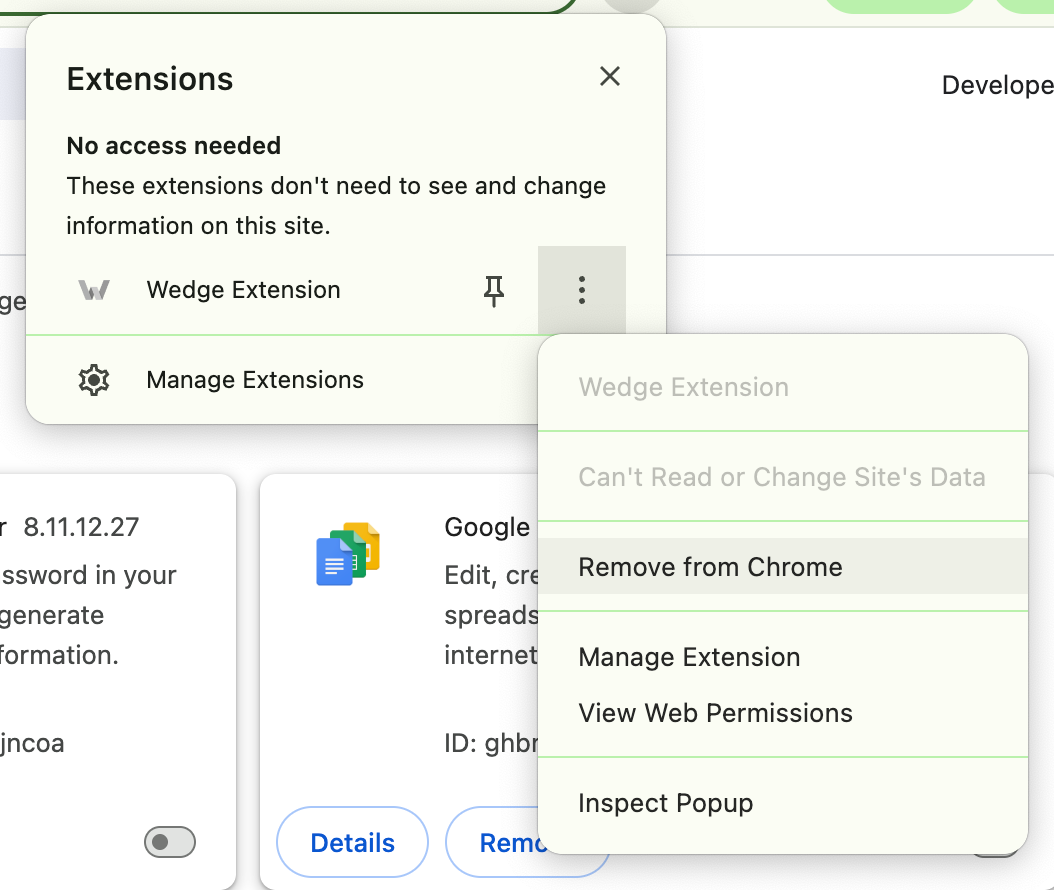
To uninstall:
- Click the puzzle piece icon in the top-right corner of your browser.
- Click the three dots next to Wedge Extension.
- Select Remove from Chrome.
- Confirm removal.
To reinstall:
Follow the instructions in the Setting Up the WedgeHR Extension help article.
If you’ve tried all of the steps above and are still running into issues, reach out to our Success team. We’ll help you get it sorted quickly.