
Create Custom Questions
WedgeHR comes with a library of pre-built questions organized by category. But the best interviews include questions written by you, tailored to your roles, your team, and what you actually need to learn about each candidate.
Custom questions live in your prompt library. Once you create one, it's available across all of your interviews. You can add them to any playlist at any time.
In WedgeHR, you'll see the word "prompts" in the interface. Prompts and questions mean the same thing.
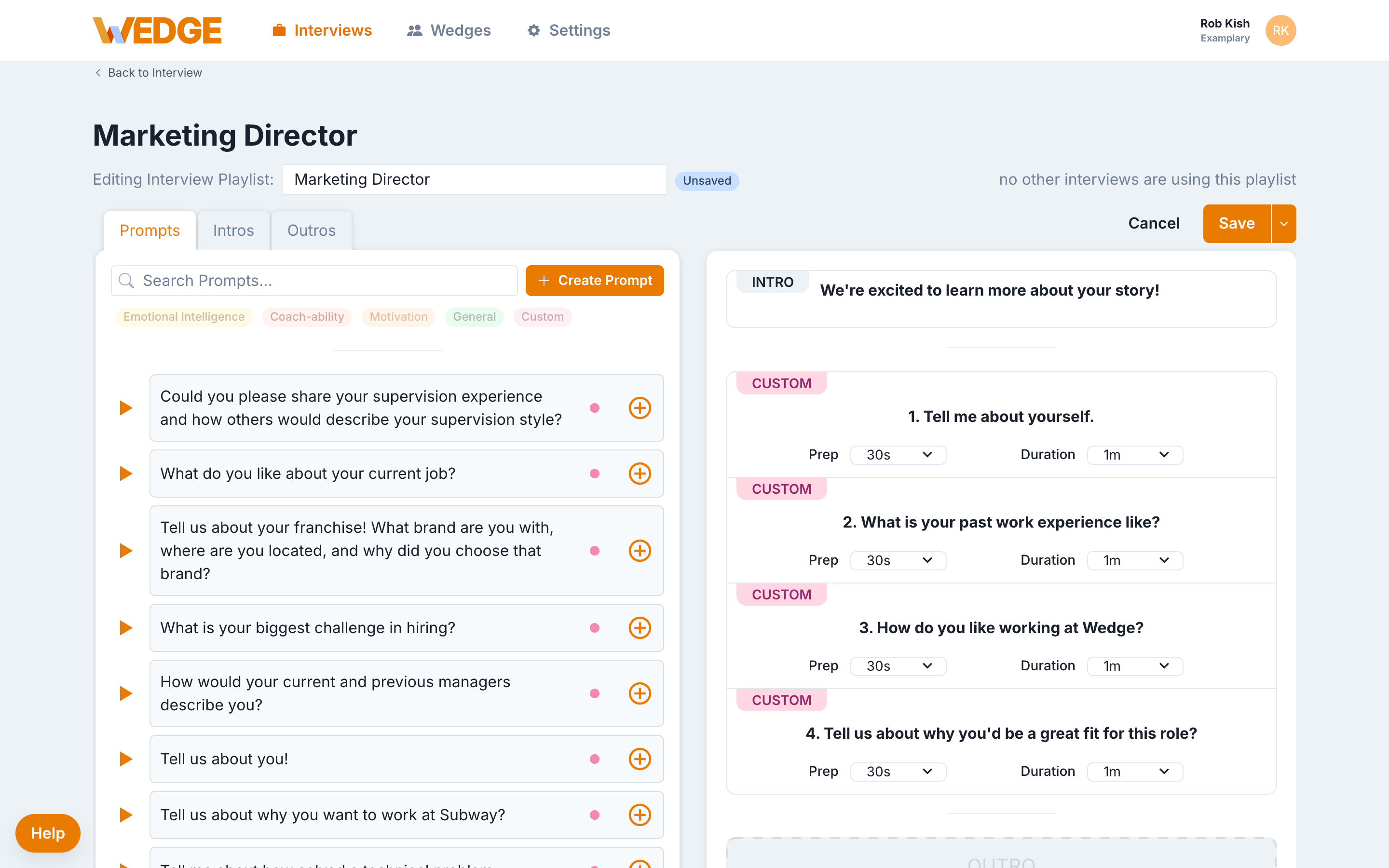
Where to find custom questions
Custom questions are created and managed from the Prompts tab inside any interview playlist.
- Open an interview and click the Manage Prompts button to edit the Interview Playlist.
- Select the Prompts tab on the left side.
- Click the Custom category filter to see all your custom questions.
You can also use the Search Prompts bar to find a specific question.
Create a question with video
Adding a video to your question lets candidates see and hear a real person asking the question. This adds a personal touch that makes the interview feel more human.
You have two options for adding video to a custom question.
Record a video in WedgeHR
- Click + Create Prompt.
- Click Record One in the upload area on the left.
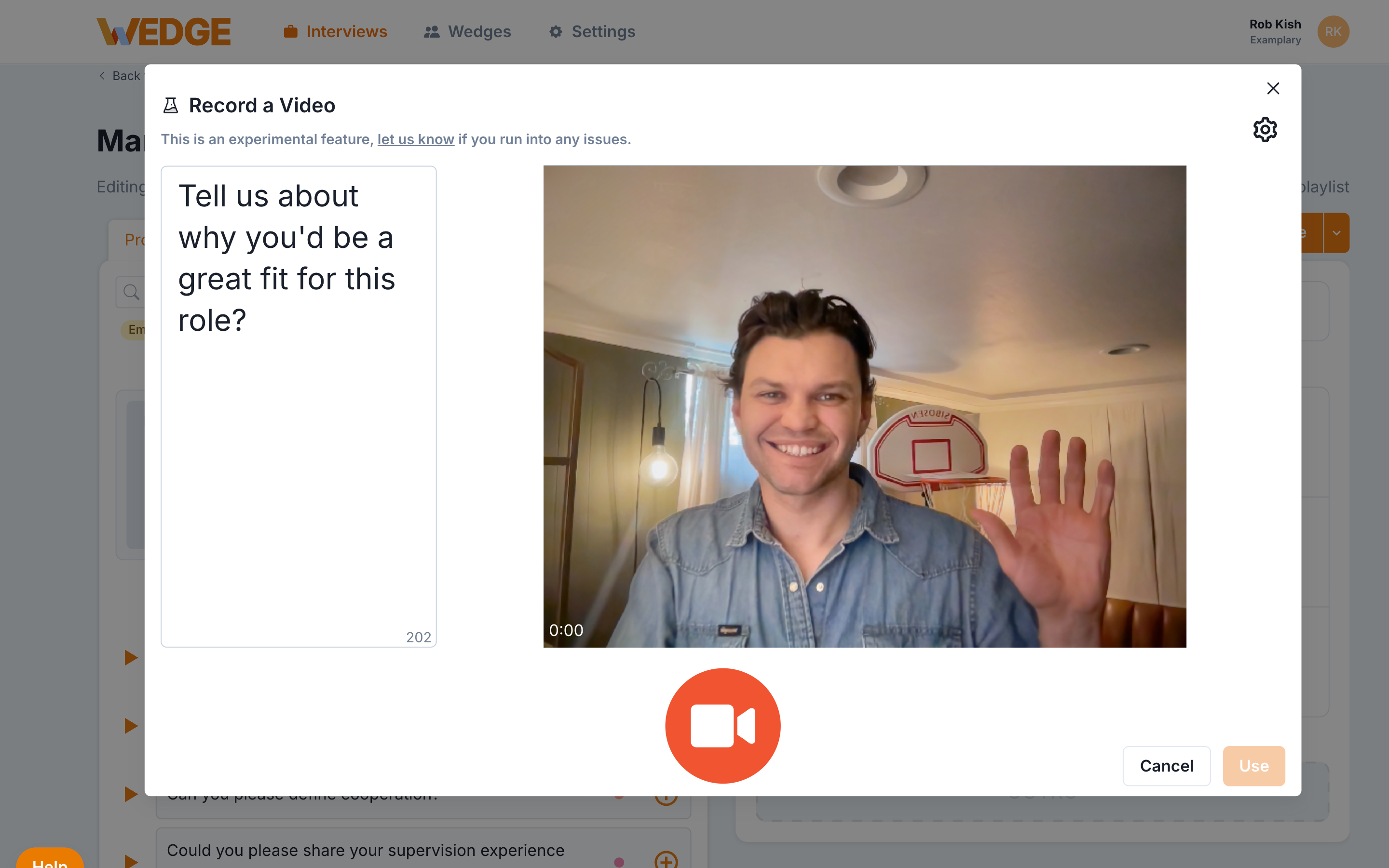
- A recording window will open. You'll see the prompt text on the left and your webcam preview on the right.
- Click the red camera button to start recording.
- When you're done, click Use to attach the recording to your prompt.
- Type the question into the Prompt Text field. Make sure the text matches what you say in the video.
- Add an Internal Title if you want.
- Click Create.
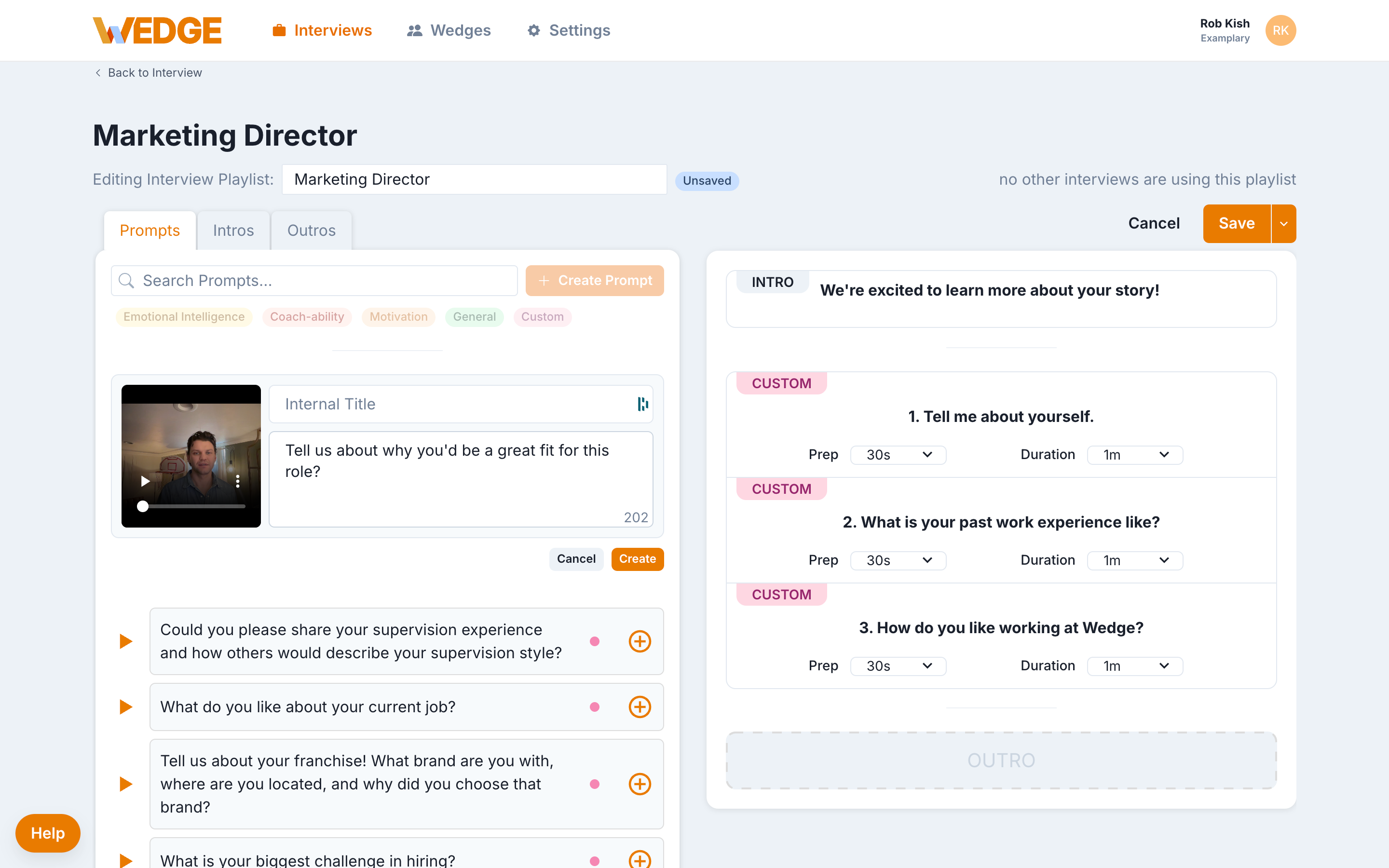
For accessibility, the prompt text must match the question you ask in the video. Candidates who can't hear the video rely on this text to know the question.
Upload a video file
If you recorded your question using a phone, webcam, or other device, you can upload the file instead.
- Click + Create Prompt.
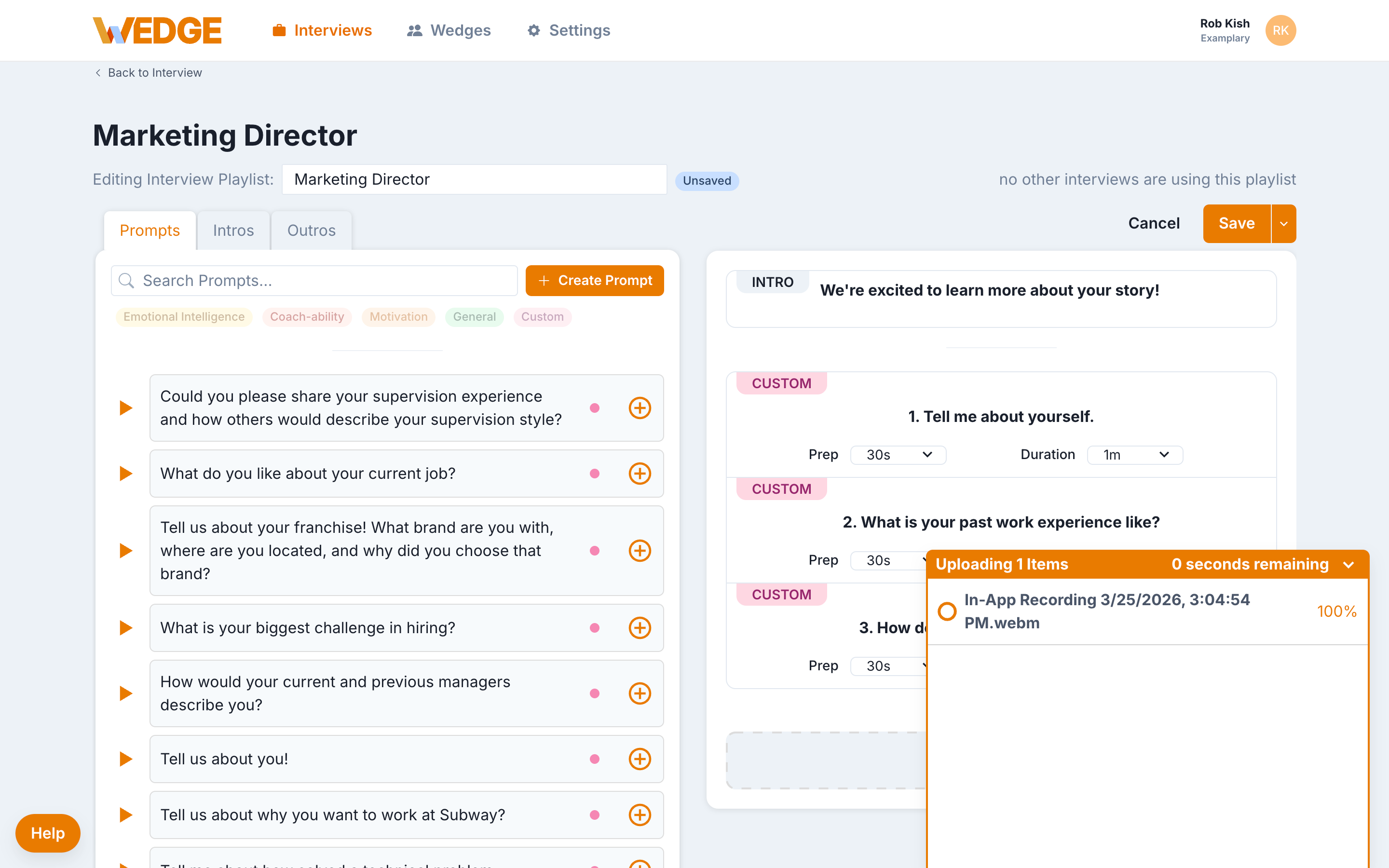
- Drag and drop your video file into the upload area, or click Browse Files to select it from your computer.
- Type the question into the Prompt Text field. Match the text to what you say in the video.
- Add an Internal Title if you want.
- Click Create.
- Wait for the upload to finish.
Video files must be .mp4 or .mov format.
Create a text-only question
A text-only question shows written text on screen for the candidate to read and respond to. This is the fastest way to add a custom question.
- Click + Create Prompt.
- Type the question into the Prompt Text field. This is exactly what candidates will see on screen.
- Add an Internal Title if you want (optional). Internal titles are only visible to your team. They help you tell similar questions apart when browsing the library.
- Click Create.
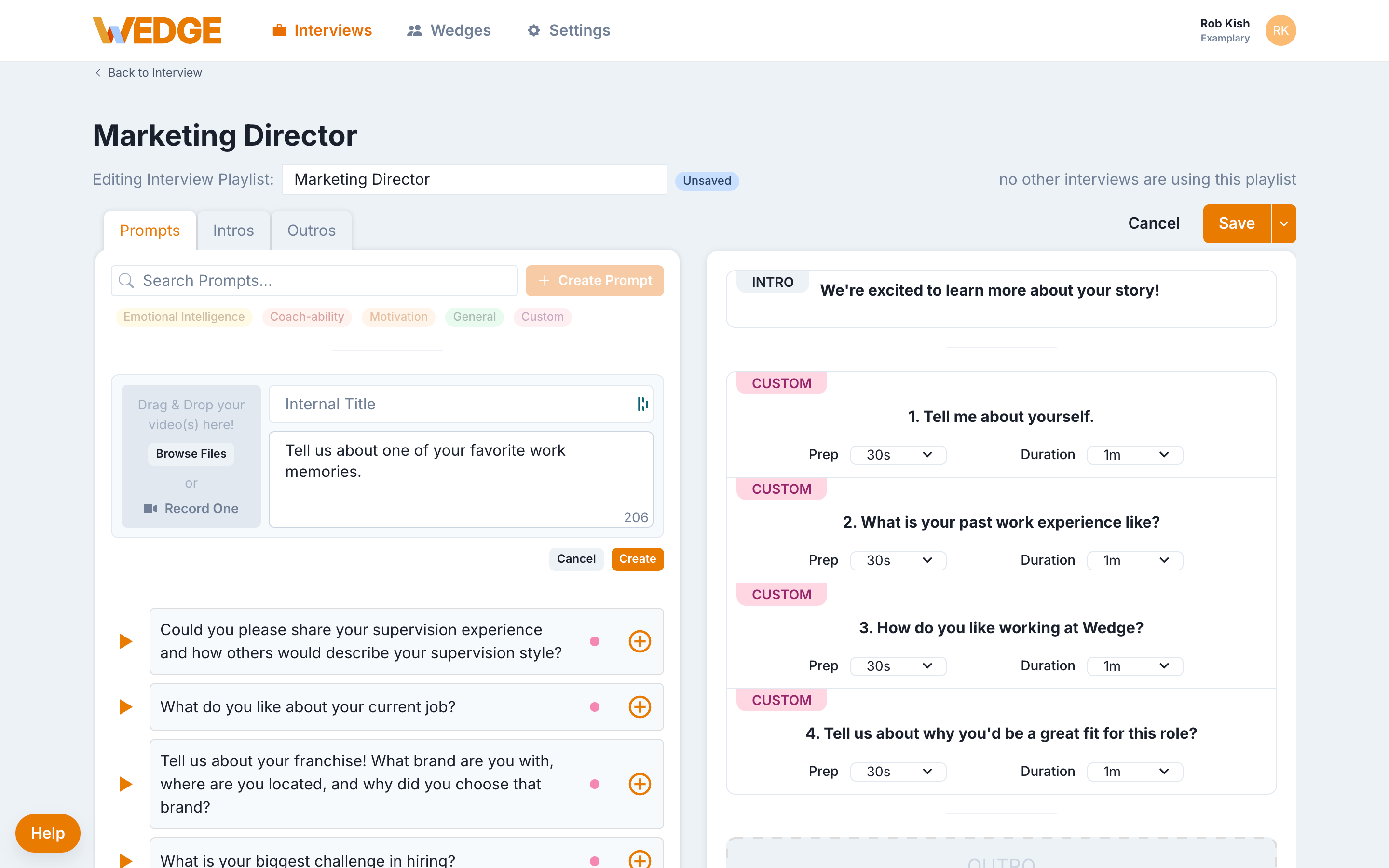
Your new question now appears in the Custom category of your prompt library.
Preview a question
You can preview any question in your library before adding it to a playlist.
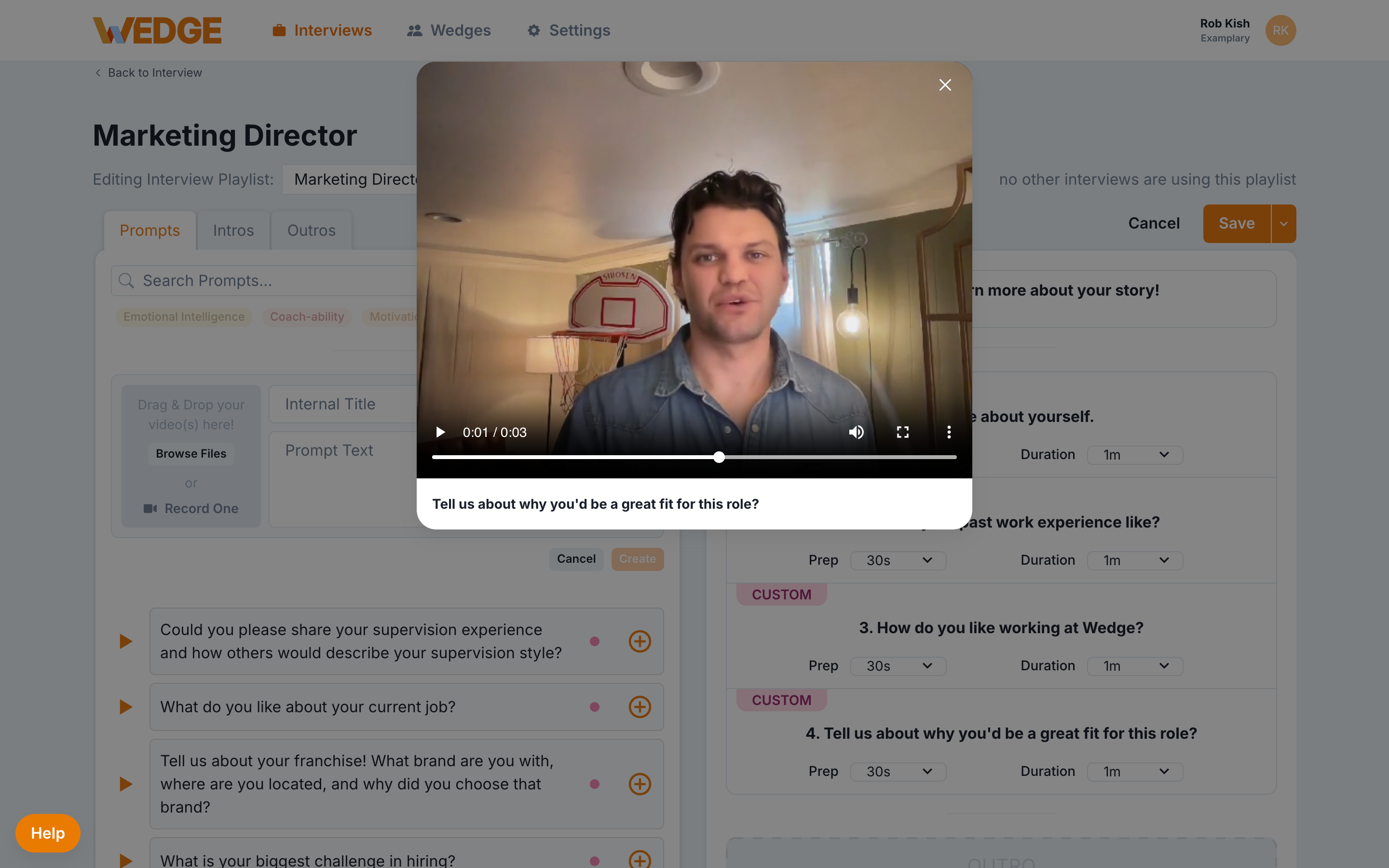
Click the orange play button next to any prompt in the list.
- Text-only questions open a modal showing the prompt text in large format.
- Video questions open a modal with the video player and the prompt text below.
Add custom questions to your playlist
Adding a custom question to your interview works the same way as any other prompt.
- Select the Custom category filter to see your custom questions.
- Click the orange + button next to any question to add it to the playlist on the right.
- Drag questions in the playlist to reorder them.
- Click Save when you're done.
Edit a custom question
You can update the text or video for any custom question you've created.
- Hover over a custom question.
- Click the pencil icon to edit.
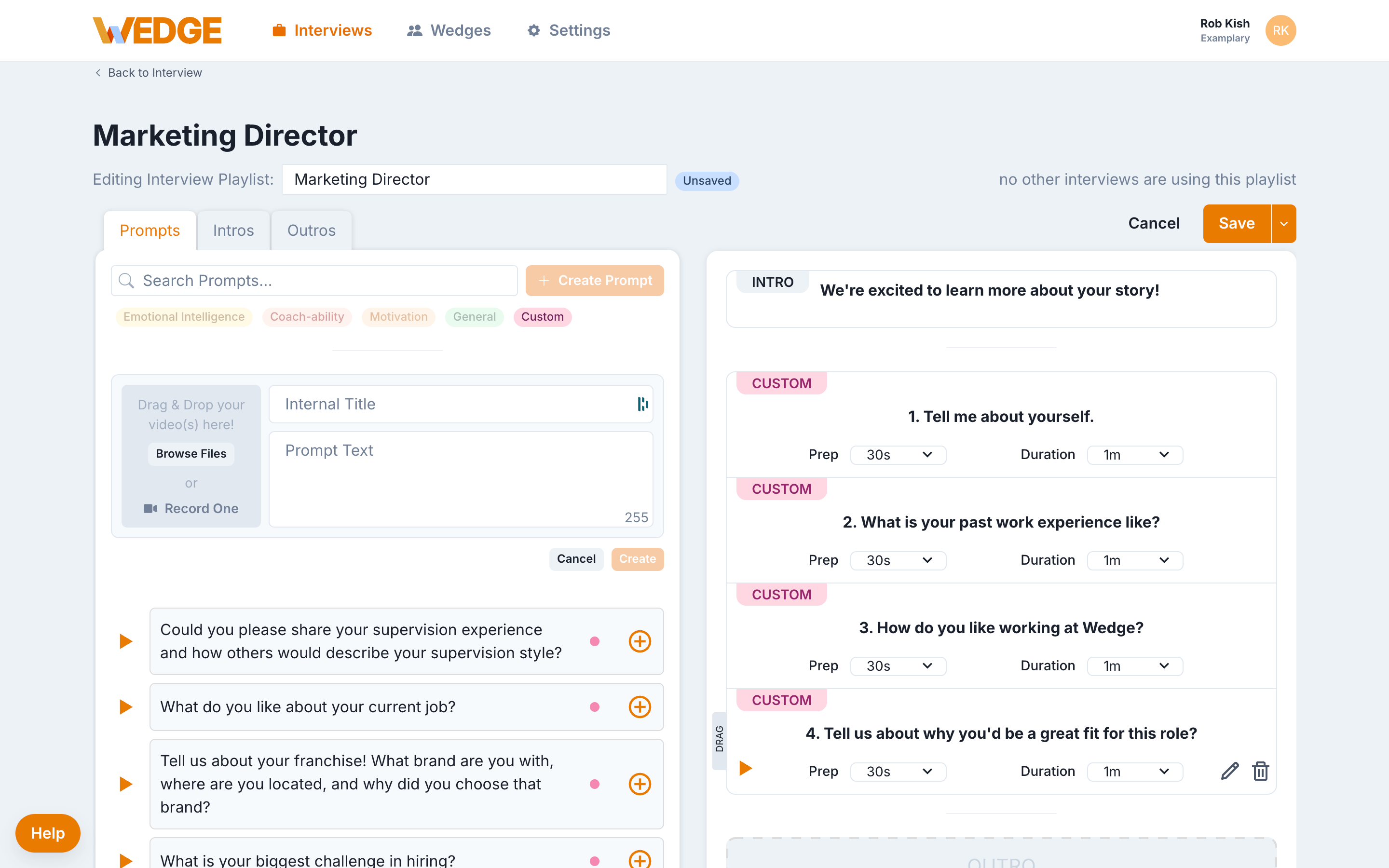
- Update the Prompt Text, Internal Title, or replace the video.
- Click Save.
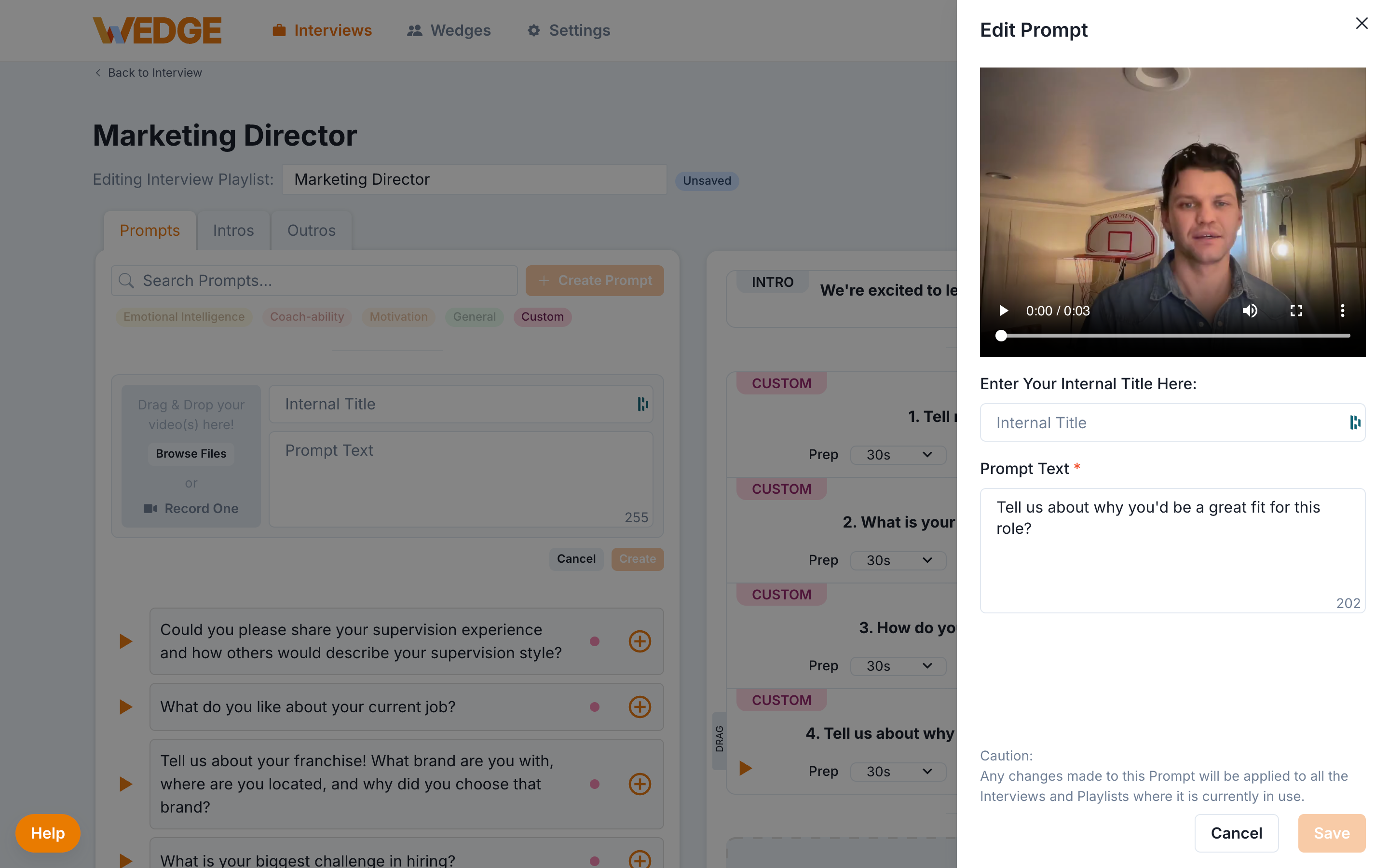
Changes to a custom question apply everywhere that question is used. If you edit a question that's in multiple playlists, every playlist will reflect the update. The caution message at the bottom of the edit panel confirms this.
Delete a custom question from a playlist
To remove a question from your current playlist without deleting it from your library:
- Hover over the question in the playlist on the right side.
- Click the trash icon to remove it.
The question stays in your prompt library. You can add it back at any time.
Tips for writing good custom questions
- Keep questions short and conversational. Candidates respond better when questions feel natural.
- Ask about real work. Questions tied to what the person will actually do give you the most useful responses.
- Use the Internal Title. If you have similar questions for different roles, the internal title helps you tell them apart quickly.
- Record video when you can. A video question from a real person on your team makes the experience warmer for candidates.
- Start with 3 to 5 questions. Most interviews work well with a short, focused set.
Good to know
- Custom questions are shared across your account. Once created, they're available for every interview.
- Custom questions appear in the Custom category filter in the prompt library.
- You can mix custom questions with pre-built questions from other categories in the same playlist.
- The prompt text has a 255 character limit.
What's next
- Manage Prompts to organize, reorder, and categorize your question library.
- Interview Playlists to create reusable sets of questions for different roles.
- Intros and Outros to add welcome and wrap-up videos to your interview.