
Set Up Your Interview Questions
Your interview questions shape the candidate experience and determine the quality of responses you get back. The question library is where you choose, organize, and fine-tune the questions candidates will answer in each interview.
In WedgeHR, the interface uses the word "prompts." Prompts and questions mean the same thing. This article uses "questions" throughout.
Open the question library
The question library is tied to a specific interview. To open it:
- Go to Interviews and click the interview you want to edit.
- In the sidebar under Actions, click Manage Prompts.
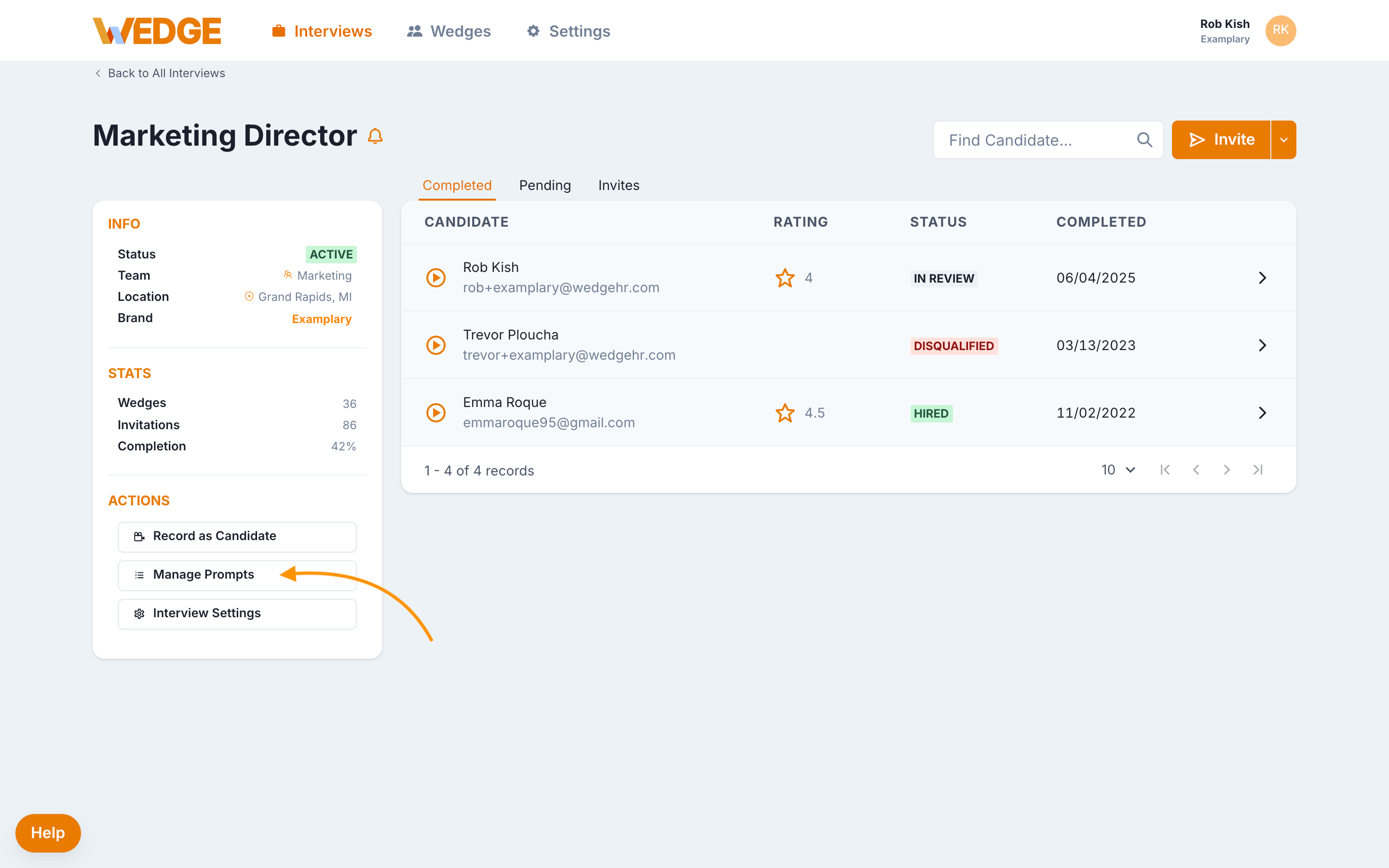
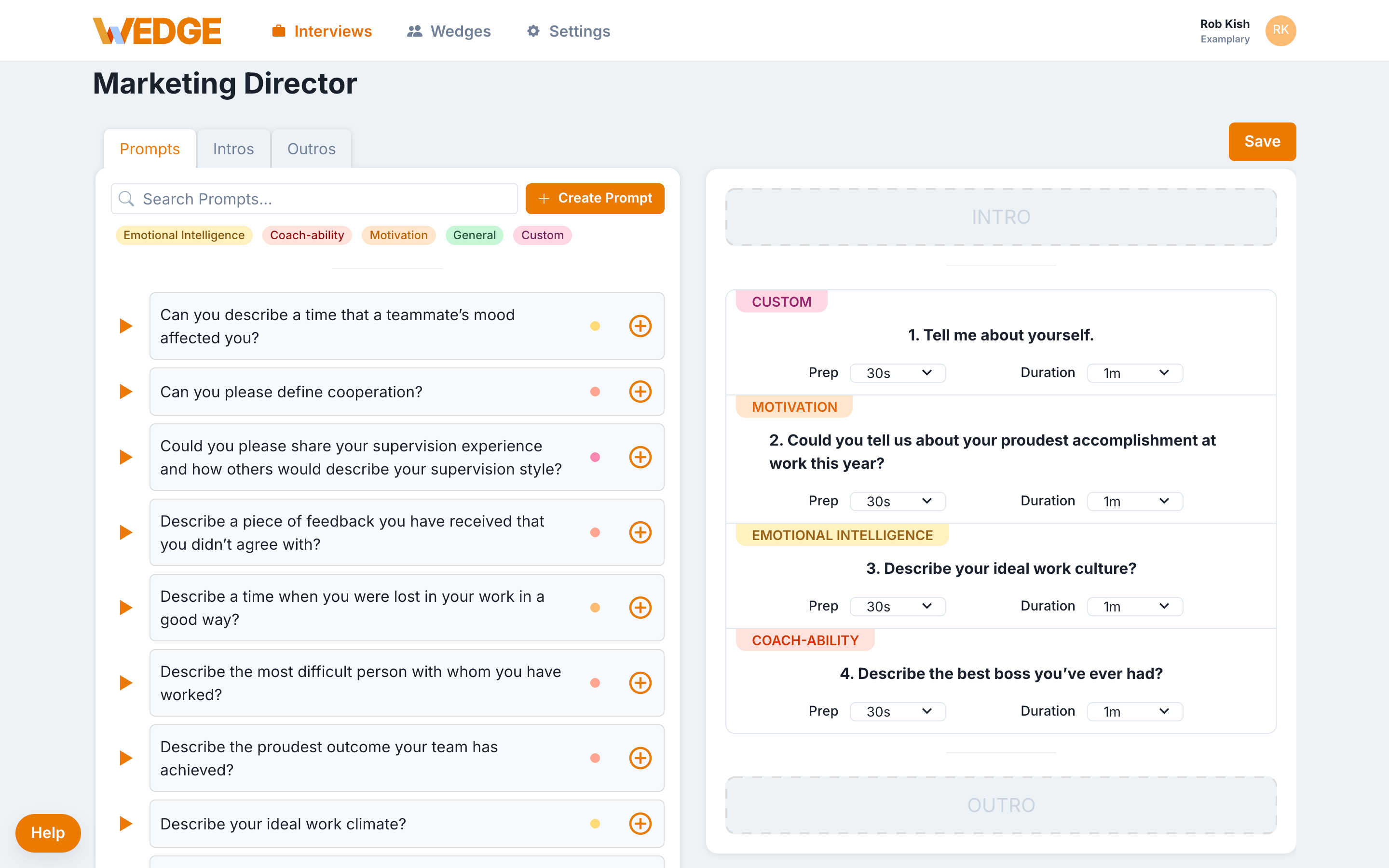
The library opens with two sections side by side. The left side is your question library, where you browse and search all available questions. The right side is your question lineup, the ordered list of questions candidates will answer during the interview.
Browse the question library
The left side of the screen shows all the questions available to you. WedgeHR includes 150+ pre-recorded questions organized into five categories:
- Emotional Intelligence
- Coach-ability
- Motivation
- General
- Custom (questions your team has created)
Click any category filter at the top to narrow the list. You can also type in the Search Prompts bar to find a specific question by keyword.
Each pre-built question includes a video of an actor asking the question. Candidates see and hear this video during the interview. Click the orange play button next to any question to preview it before adding it.
Add questions to your interview
To add a question from the library to your interview:
- Browse or search for the question you want.
- Click the orange + button next to the question.
The question appears at the bottom of your question lineup on the right side. You can add questions from any category and mix pre-built questions with custom ones in the same interview.
Organize your question lineup
The order of questions in the lineup is the order candidates will see them. You control the sequence, timing, and which questions stay or go.
Reorder questions
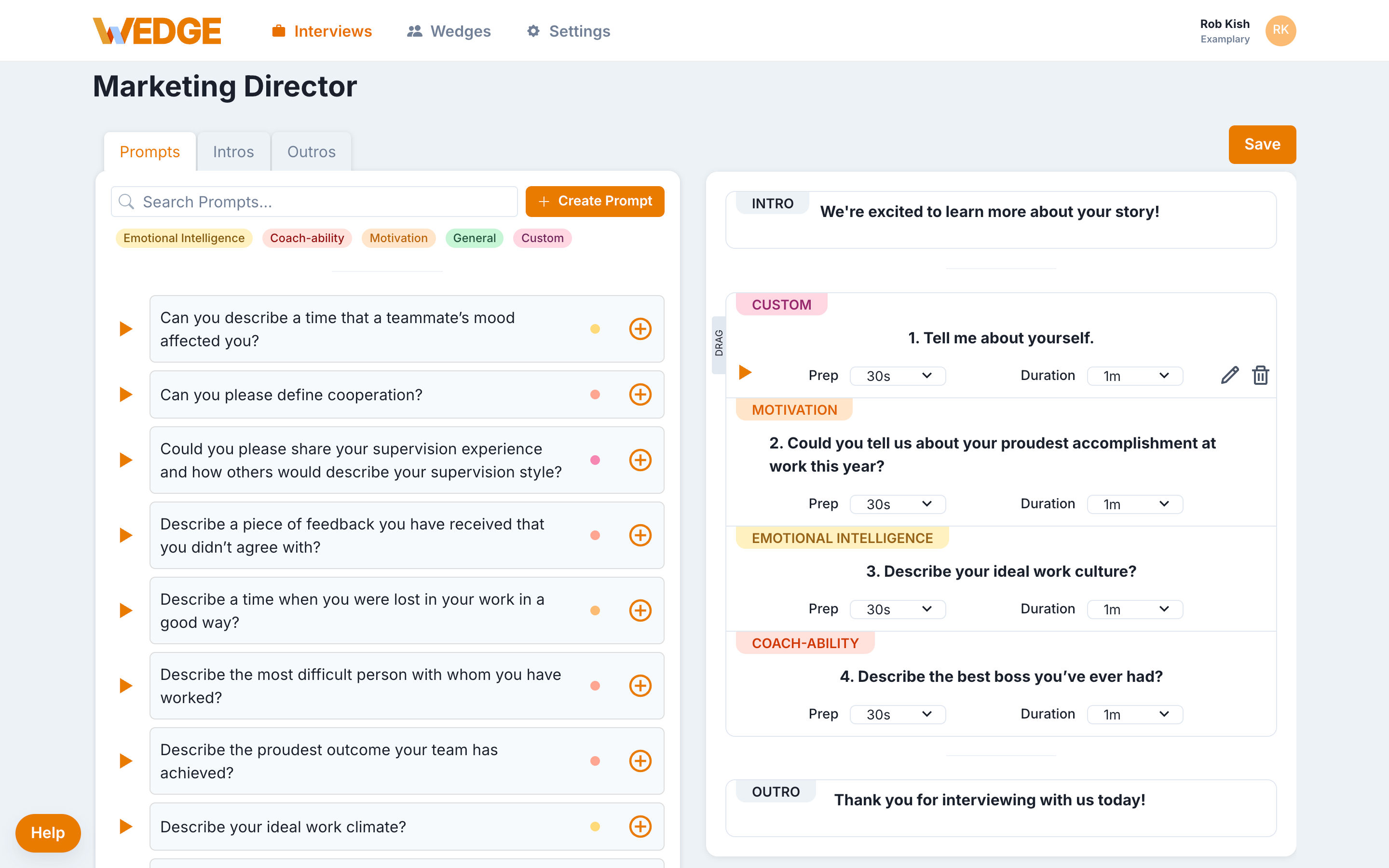
Click and drag the drag handle on the left edge of any question in the lineup to move it up or down.
Set prep time and duration
Each question in the lineup has two timing controls:
- Prep: How long candidates have to read and think about the question before recording starts. Options range from 15 seconds to 3 minutes.
- Duration: The maximum recording time candidates have for their response.
Adjust these using the dropdown menus on each question.
Tip: 30 seconds of prep time and 1 minute of recording time work well for most questions. Shorter durations keep responses focused. Longer durations work better for behavioral or scenario-based questions.
Remove a question from the lineup
- Hover over the question in the lineup on the right side.
- Click the trash icon to remove it.
Removing a question from the lineup does not delete it from your library. You can add it back at any time.
Add intros and outros
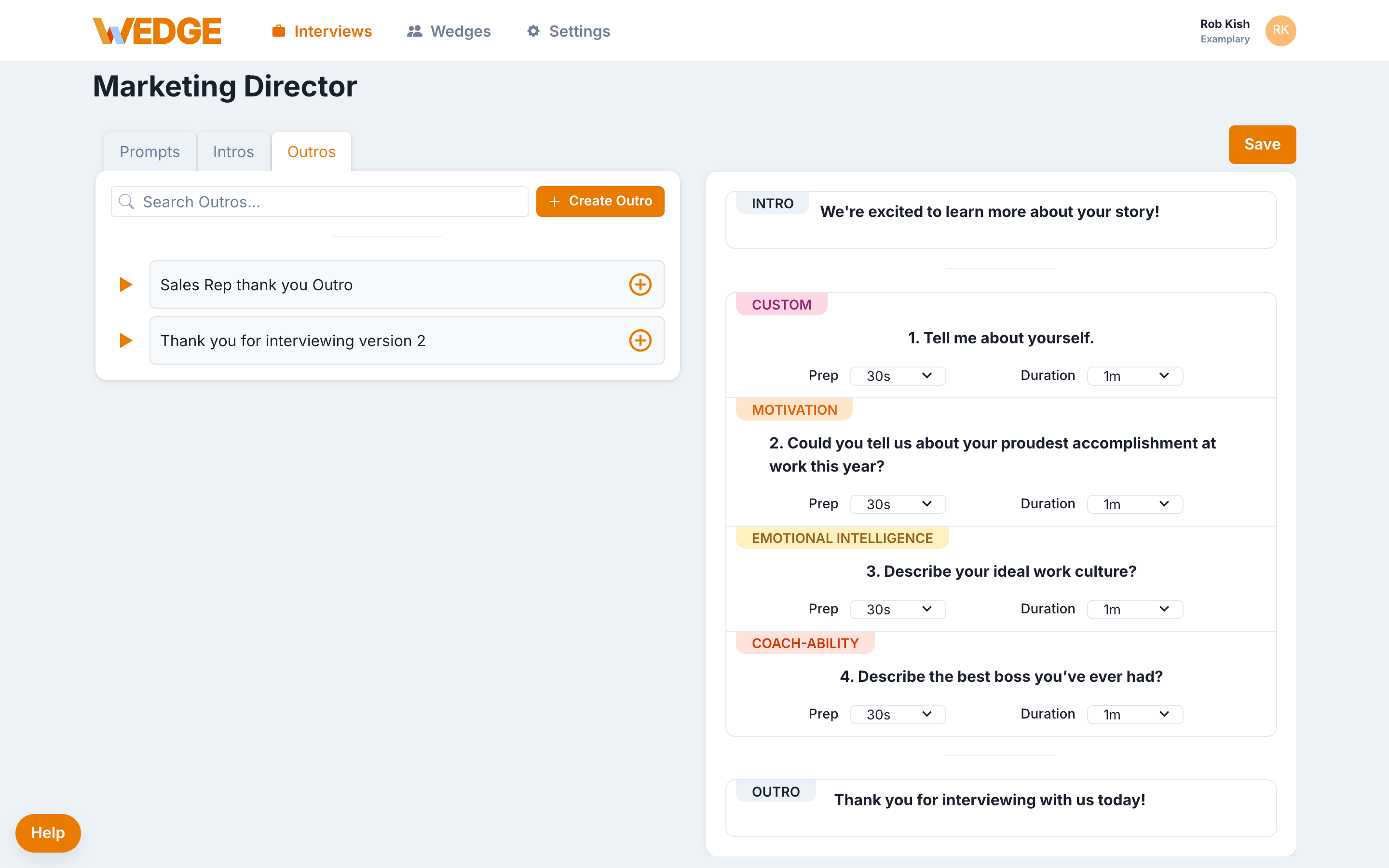
Your question lineup can include an intro video at the beginning and an outro video at the end. These give candidates a warm welcome and a clear wrap-up.
Click the Intros or Outros tab at the top of the question library to see your available videos. Your account won't have any pre-loaded. Intros and outros are specific to your team and roles, so you'll record your own. Once you've created one, click the orange + button to add it to your lineup.
The intro and outro appear at the top and bottom of the lineup on the right side.
For more on creating and managing intro and outro videos, see Intros and Outros.
Save your changes
When you're done editing your question lineup, click the Save button in the top-right corner of the page.
Your changes are not applied until you save. If you navigate away without saving, your edits will be lost.
Edit a question in the lineup
You can update the text, internal title, or video for any custom question directly from the lineup.
- Hover over the question in the lineup.
- Click the pencil icon to open the edit panel.
- Make your changes and click Save.
Changes to a custom question apply everywhere that question is used. If the question appears in multiple interviews, every interview will reflect the update.
You can only edit custom questions. Pre-built questions from the WedgeHR library cannot be modified.
For full details on creating and editing custom questions, see Create Custom Questions.
Good to know
- Start with 3 to 5 questions. Most interviews work well with a short, focused set. More than 7 questions can lead to candidate drop-off.
- Mix categories for a well-rounded interview. Combining questions from Motivation, Coach-ability, and Emotional Intelligence gives you a broader view of each candidate.
- Custom questions are shared across your account. Once created, any team member can add them to their interviews.
- You can reuse the same question lineup across multiple interviews. If you want to manage questions once and apply them to several interviews, see Interview Playlists.
What's next
- Create Custom Questions to add questions tailored to your roles and team.
- Intros and Outros to add welcome and wrap-up videos to your interview.
- Interview Playlists to create reusable question sets you can assign to multiple interviews.
- Interview Settings to configure retakes, response controls, and other interview options.